A gaming setup says a lot about the person who built it: the chair you saved up for, the keyboard you researched for weeks. A neon sign pulls it together and makes the space feel finished, whether it’s a full game room or a bedroom corner.
Below you’ll find sign ideas, from gamer tags to arcade-style phrases, plus the practical side: matching your RGB lighting, choosing desk or wall, keeping glare off your screen and looking good on stream.
Gamer tag and name signs
Your tag is the name people know you by online, so why not put it on the wall? Formats that work well:
Your tag on its own, in a clean block font
Your tag plus a small icon, such as a controller, a crown or a headset
“[Name]’s Arcade”, “[Name]’s Lair” or “[Name]’s Battle Station”
Your own squad or clan name for a shared game room
Matching “Player 1” and “Player 2” signs for couples or siblings
Our Custom Arcade sign shows the name-plus-word layout: a name in bold letters with “Arcade” underneath in a second color, inside a glowing border. To build your own, use the custom neon sign designer, where you can give each line its own font and color and combine text with an image. You’ll get a free mockup, with revisions until the design is right.
Make your tag easy to read
Tags are full of characters that cause trouble in neon. In a thin script font, a lowercase l, a capital I and the number 1 blur together, and so do the letter O and a zero. A block or rounded sans-serif font keeps each character distinct.
Do the size math
Our sign sizes refer to the longest side of the finished backing. Most designs come in 50 cm (20 in), 70 cm (28 in) and 90 cm (35 in), and selected designs in 120 cm (47 in). A 10-character tag on one line of a 90 cm sign leaves each character less than 9 cm (about 3.5 in) of width once you allow for spacing. If your tag is long, split it over two lines or step up a size.
Controller, arcade and icon shapes
Not every sign needs words. A shape can say “game room” from across the house.
Controllers and gamepads
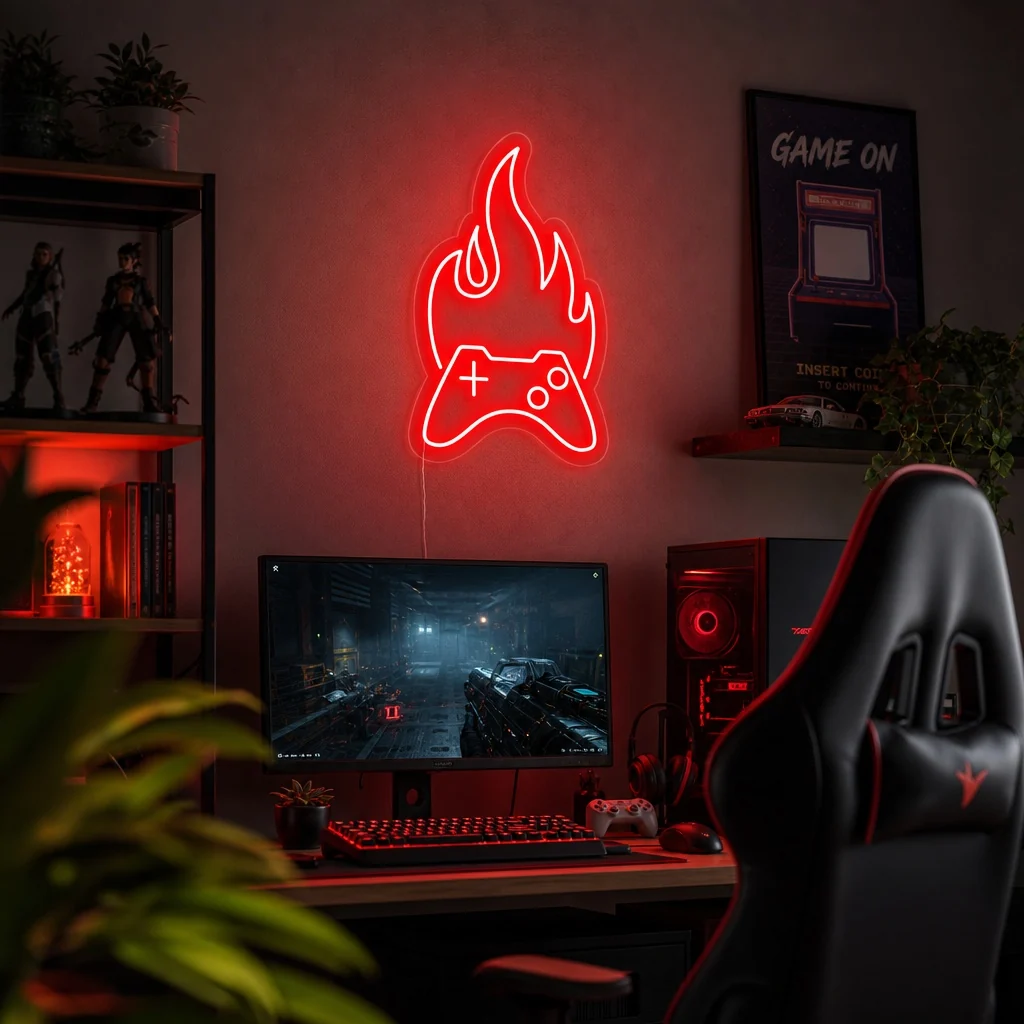
A controller outline is one of the most recognizable gaming symbols. It suits neon because the shape is mostly smooth curves, and the buttons can glow in contrasting colors. Our Gamepad On Fire sign tops a controller outline with flames, which looks at home in a red-themed setup. A simplified outline with plain buttons reads as “gaming” whichever console or PC you play on.
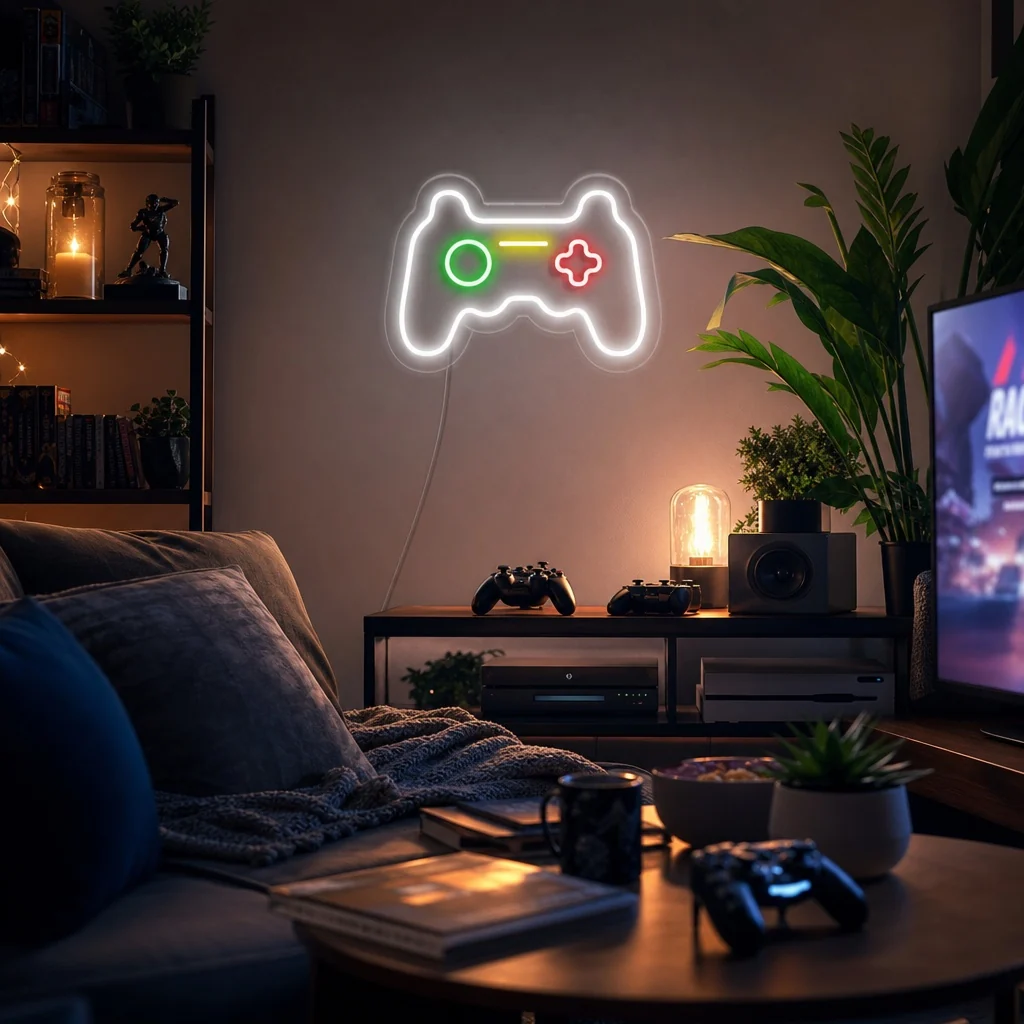
A small controller outline suits the wall above a TV console or shelf.
Arcade-era motifs
The golden age of arcade video games ran roughly from the late 1970s into the early 1980s, though historians draw the dates differently. Its bright colors on dark backgrounds and chunky pixel shapes still influence game room decor. Ideas that borrow the feel without borrowing anyone’s characters:
A joystick with a ball top and two round buttons
An arcade cabinet outline
Pixel hearts, coins or a pixel-style arrow
Short screen phrases such as “Press Start”, “Game Over”, “Respawn Point” or “One More Round”
Icons that need no words
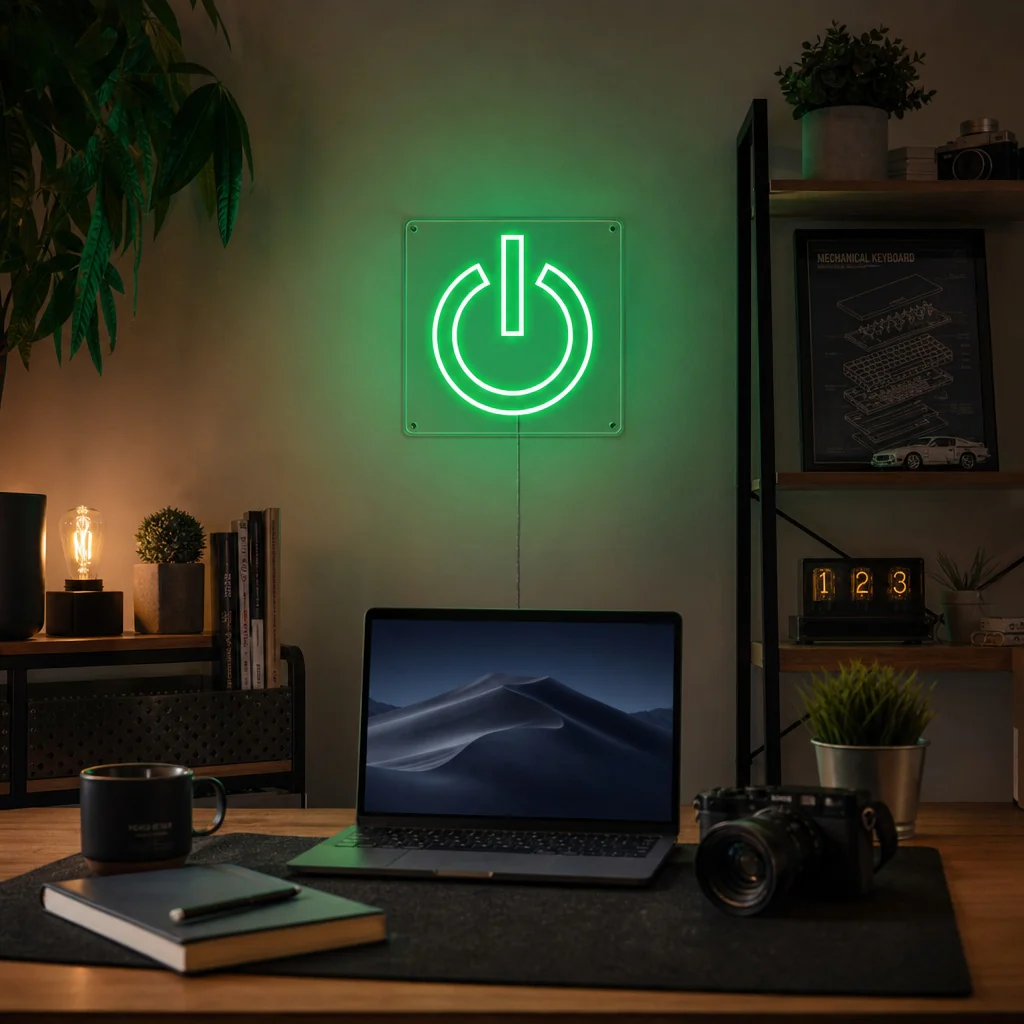
The power symbol, a line inside a broken circle, is defined in IEC 60417, the international standard for graphical symbols used on equipment, where it officially means standby. It’s on nearly every console, PC and monitor, so people recognize it instantly. Our Power Button sign puts it on a clear square backing. Other icon ideas include a headset, a VR headset outline, a D-pad, or dice and chess pieces for tabletop and strategy fans. You’ll find more in our gaming neon signs collection.
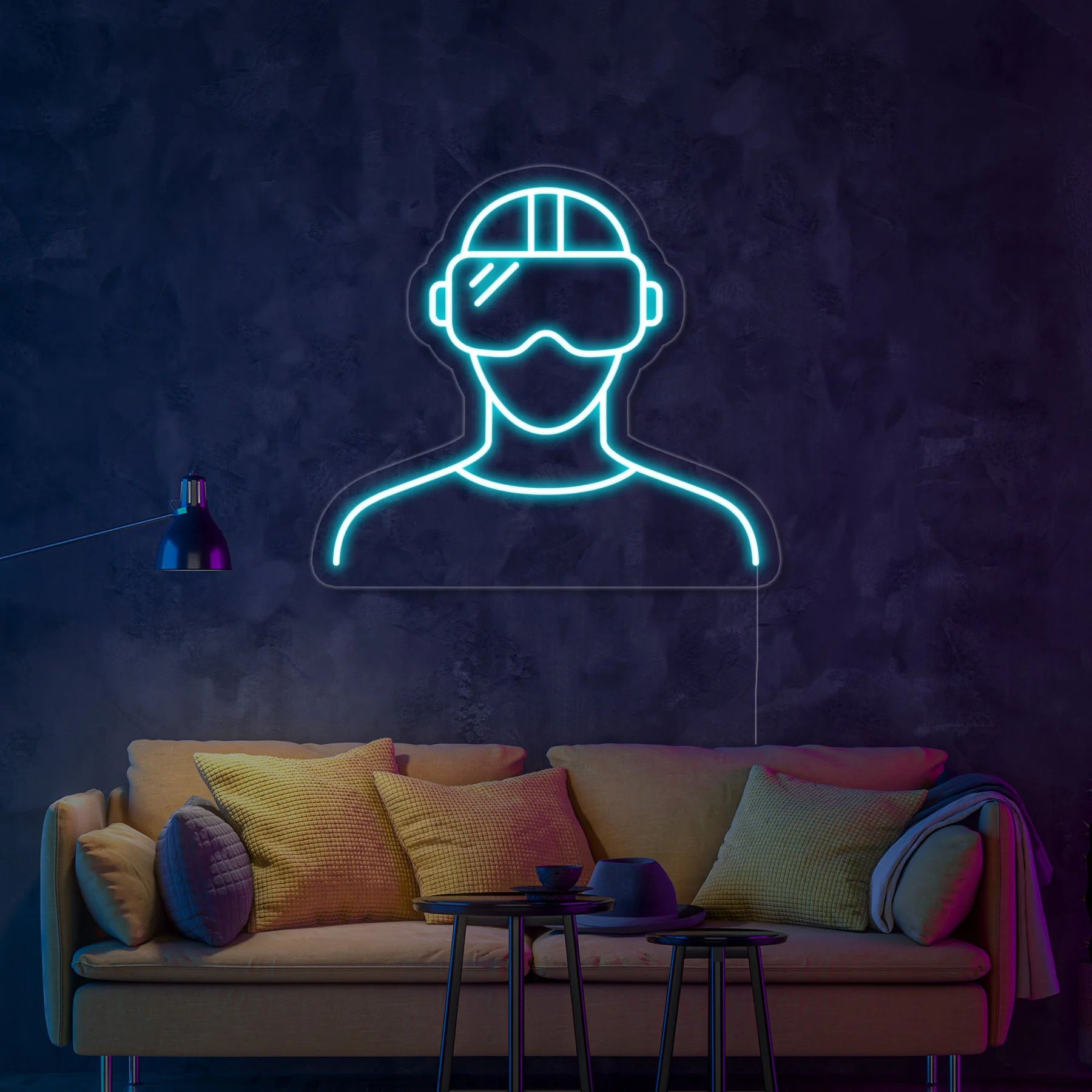
A single-color icon, like this VR headset outline, reads clearly from across the room.
Matching neon to your RGB setup
RGB gear mixes red, green and blue light, and many lighting apps let you type in an exact value, such as a hex code. A neon sign works differently: each part glows in the color you choose when you order. With our Multi-Colors option, the included remote switches the whole sign between more than seven colors, one at a time.
So choose the sign’s colors first, then tune your RGB lighting to match by eye rather than by hex code. RGB is device-dependent: the same value can look different on your keyboard, light strip and monitor.
Color options may include white, pink, red, blue, ice blue, purple, green, orange, yellow and Multi-Colors. Warm white is available on request. If a design doesn’t show the color you want, email us the product link and your colors; there’s no extra charge for switching to another standard single color or fixed color combination.
Your setup
Neon colors to consider
Backing to consider
Synthwave or cyberpunk
Pink with ice blue or purple
Black
Red and black
Red, with white for a second line
Black
All-white, minimal
White
White or transparent
Cool blue
Blue or ice blue
Transparent
Warm, cozy corner
Warm white (on request), orange or yellow
Transparent
Lighting you change with your mood
Multi-Colors
Transparent
Transparent acrylic backing is clear and minimal, white gives a brighter, more defined look, and black creates strong contrast against a dark wall.
Watch where colors overlap
Colored light adds up. Where a pink sign and a blue light strip hit the same patch of wall, you’ll see a purple-ish wash instead of two clean colors, and red and green light together read as yellow. To keep each color crisp, give each light source its own area of wall, and stick to two or three colors across the setup.
Desk or wall: where your sign should go
Placement
Works well for
Watch out for
Wall above the monitors
Most desk setups
Monitor tops hiding the sign
Side wall beside the desk
Avoiding glare
Staying in camera frame
Desk or shelf, freestanding
Small signs; renters
Hiding it behind a monitor
Wall behind your chair
Streaming backdrops
Reflections in your screen
Beside the TV
Console and couch setups
Competing with the picture
On the wall
Above the monitors is the classic spot. Pick a size that suits the width of your screens, and leave enough gap that the monitor tops don’t hide the sign, especially on high arms.
Your sign comes with a screw set made for it. Clear adhesive strips work well for signs of 50 cm or less, as long as your wall and the strips can hold the weight. To hang a sign from the ceiling, tell us before production and we’ll pre-drill the backing and include hanging wire. The components diagram in our neon sign FAQs shows a 78 in (2 m) cable between the sign and its adapter, so plan the route to your outlet.
On the desk or a shelf
If your wall is full or you can’t drill, a freestanding sign can sit on a desk, shelf or media unit. Selected designs can be made with an Acrylic Box Stand or an Acrylic Base Stand; see our freestanding neon signs for both. Selected small signs may also be available with USB power to run from a compatible power bank (not included unless the product page says so), so ask us before you order. Place a desk sign beside the monitor or on a shelf above it, not directly behind the screen.
A small icon sign keeps a compact desk setup uncluttered.
Couch and console setups
For a TV, put the sign beside the screen or above a shelf, soft enough that it doesn’t pull your eye from the game. The optional Dimmable add-on lets you turn it down with a wireless remote.
Keep the glow off your screen
A glossy screen acts like a dark mirror. Any bright light in front of it, whether a window, a lamp or a neon sign on the wall behind you, can bounce off the screen and into your eyes. OSHA’s computer workstation guidance notes that reflections make screen images harder to see and can lead to eye strain and fatigue.
Try the dark-screen test
Before you drill, switch your monitor off and sit where you normally sit. Anything you can see reflected in the black screen, like a window, a lamp or the spot where you plan to hang the sign, will show up as glare once you’re playing. UCLA’s ergonomics guidance agrees: if you can see lights or windows reflected in your monitor, you have a glare problem. Have someone hold a phone flashlight where the sign will go to be sure.
Placement rules that help
Behind or beside the screen avoids reflections. A sign on the wall you face can’t bounce off the front of your screen.
Think at right angles. OSHA suggests placing screens at right angles to windows and bright light sources, and a sign on a side wall follows the same logic.
Go high or go wide. If the sign must go behind your chair, hang it high enough, or far enough to one side, that its reflection misses your eyes.
Dim it. The Dimmable add-on gives you a wireless remote for brightness. The remote ships without a battery, so fit your own before first use.
Balance the glow with your screen
OSHA notes that high contrast between your screen and its surroundings can cause eye fatigue and headaches, and UCLA’s ergonomics guidance says your monitor’s brightness should match the room’s. A soft glow on the wall behind your monitors helps, because you’re no longer staring at a bright rectangle in a pitch-black room.
The catch: the same OSHA guidance says bright light sources behind a screen can create contrast problems of their own. If a sign in your line of sight looks brighter than your screen, dim it or move it to the side.
It’s a cousin of bias lighting, the soft glow home theater fans put behind TVs. Bias lights are usually recommended in neutral white, around 6,500 K, to match the white of most displays. A colored sign won’t do that job exactly, so switch it off when color accuracy matters, like photo editing.
Neon as a streaming backdrop
A sign in the back of your shot gives your channel an identity before you say a word, but it takes a little care on camera.
Frame it on camera, not in the room. Use your camera preview, and put the sign behind you and off to one side so your head doesn’t hide it. Many video apps mirror your self-view, so a word sign can look backwards to you while viewers see it the right way around.
Light your face first. Streaming guides put a key light in front of you, often about 45 degrees to one side, with a dimmer fill light opposite. Your sign is a background light. If it’s the brightest thing in the shot, your camera can darken the image and leave your face in shadow, so dim the sign or brighten your key light.
Lock your white balance. Automatic white balance can be fooled by large areas of solid color, and a big pink or blue glow can push your skin tone the opposite way. Set it manually in your webcam or camera software.
Watch for banding. Many LED dimmers switch the light on and off very quickly, which a camera can catch as rolling bands, especially at low brightness. In tests at Penn State’s lighting lab, LEDs at full output showed no banding on camera, while dimmed settings did. If you see bands, raise the brightness a little or try a slower shutter speed if your camera allows it.
Frequently asked questions
What size sign should I get for above my gaming desk?
Measure the clear wall above your monitors first. Most designs come in 50, 70 and 90 cm (20, 28 and 35 in) on the longest side, and selected designs in 120 cm (47 in). Send us your design and we’ll confirm its exact width and height.
Can a neon sign sync with my PC’s RGB lighting?
Plan on matching rather than syncing. Your sign glows in the colors you choose when you order, so set your RGB to match it. With Multi-Colors, the included remote switches the whole sign between more than seven colors. If you need something more specific, contact us before you order.
Will a neon sign cause glare on my monitor?
It can if the sign sits where your screen reflects it, usually on the wall behind your chair. Mount it behind or beside the screen, run the dark-screen test before drilling, and dim it if needed.
Can I put my channel logo on a sign?
Yes, if it’s artwork you own. Upload your logo or a sketch and you’ll get a free mockup. Details too fine for neon can be engraved into the acrylic or UV printed onto the backing.
Ready to finish your setup? Design your own custom neon sign with your gamer tag, channel name or favorite icon, and see a free mockup before anything is made. Or browse our game room neon signs for ready-made designs.
Where neon works in a salon, nail bar or beauty studio, from brand signs and selfie walls to menu headers, and how to protect color-critical lighting, place signs around mirrors and keep them clean.
From happy hour and specials signs to cocktail, beer and coffee themes, here are neon sign ideas for bars, restaurants and cafés, with practical tips for dining rooms, back bars, photo walls and patios.
How to turn your logo into a neon sign that works for your business: preparing and simplifying the artwork, window vs. interior placement, OPEN signs, brand colors, sizing for visibility and local sign rules.